
Using Your Venture31 Panel
Learn how to register, log in, and log out of the Hosting Panel.
This article describes how to access the Hosting Panel. The Hosting Panel is your gateway to managing Venture31.com products and services.
Signing up for an account
If you do not already have an account in the Hosting Panel, you must first place an order with us to create an account. Once your account is created, follow these steps to log into your account:
- Use your web browser to go to https://www.venture31.com/hosting/
- A purchase of any one of our services will automatically create an account for.
- You will receive a message at the email address you specified. In the message, click Verify Registration to complete the account creation process.
- From our website venture31.com, navigate to the client area by clicking the User icon in the top left-hand corner of our website:
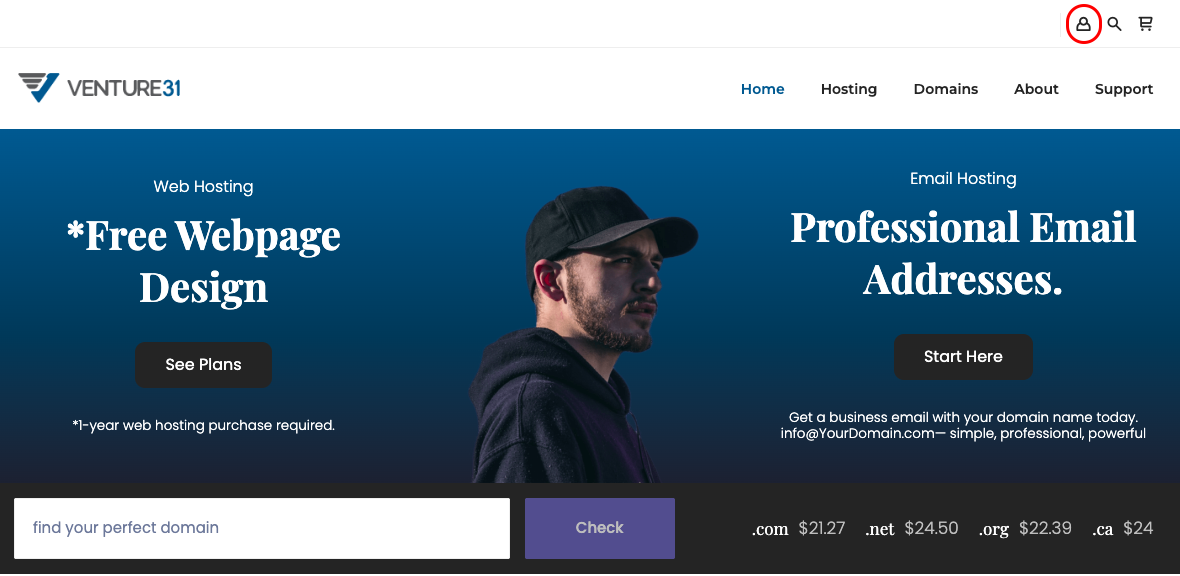
- You can now log in to the Hosting Panel using the email address and password you provided in the sign-up process.
Logging in to the Hosting Panel
To log in to the Hosting Panel, follow these steps:
- Use your web browser to go to https://venture31.com/billing/index.php?rp=/login
- On the Login page, in the Email Address text box, type the email address you specified when you created your account:
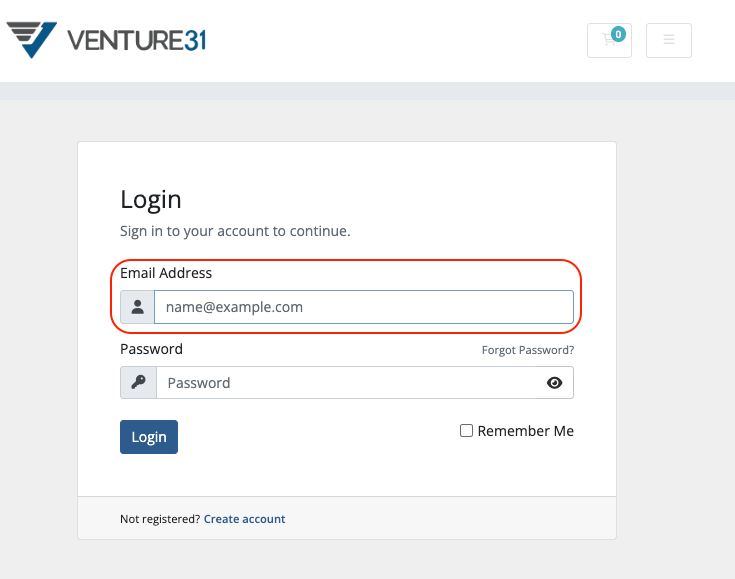
- In the Password text box, type the password you specified when you created your account.
- Click Login. The Hosting Panel home page will appear.
Resetting your password
If you forget your password, you can reset it. To do this, follow these steps:
- Use your web browser to go to https://venture31.com/billing/index.php?rp=/login
- Click Forgot password:
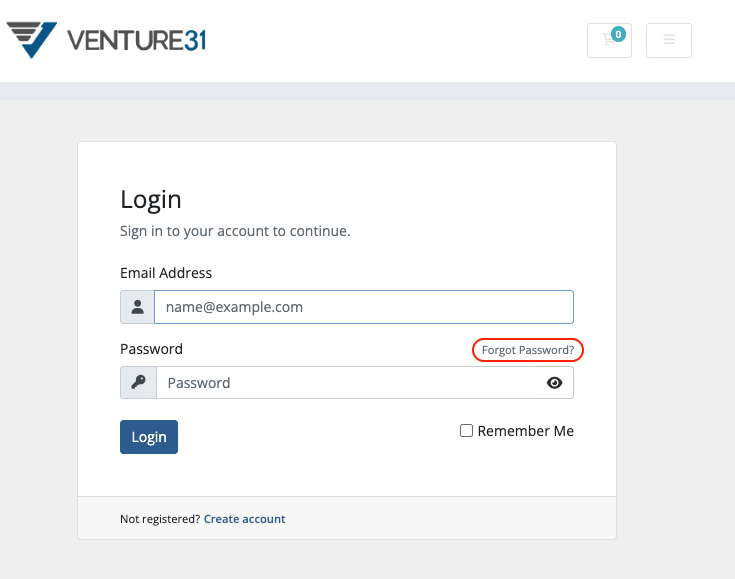
- In the Email text box, type the email address associated with your account, and then click Send reset instructions:
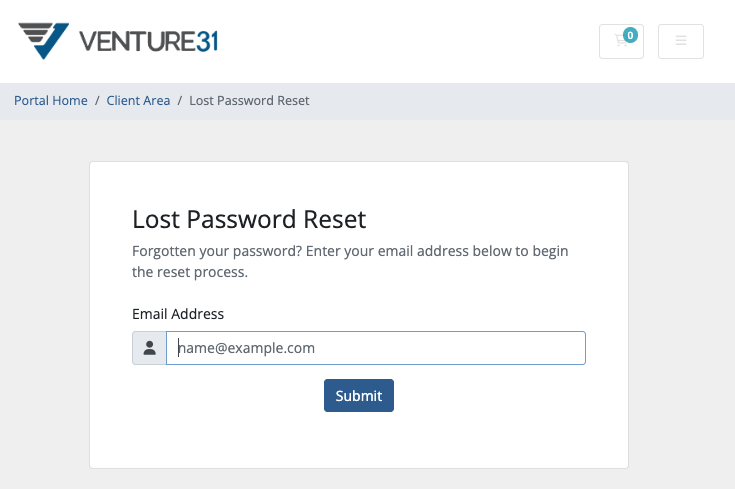
- Follow the instructions in the email to reset your password.
Logging out of the Hosting Panel
To log out of the Hosting Panel, follow these steps:
- In the Hosting Panel, click the top-right icon, and then click Logout